
Plan a session
Make the workspace comfortable to read
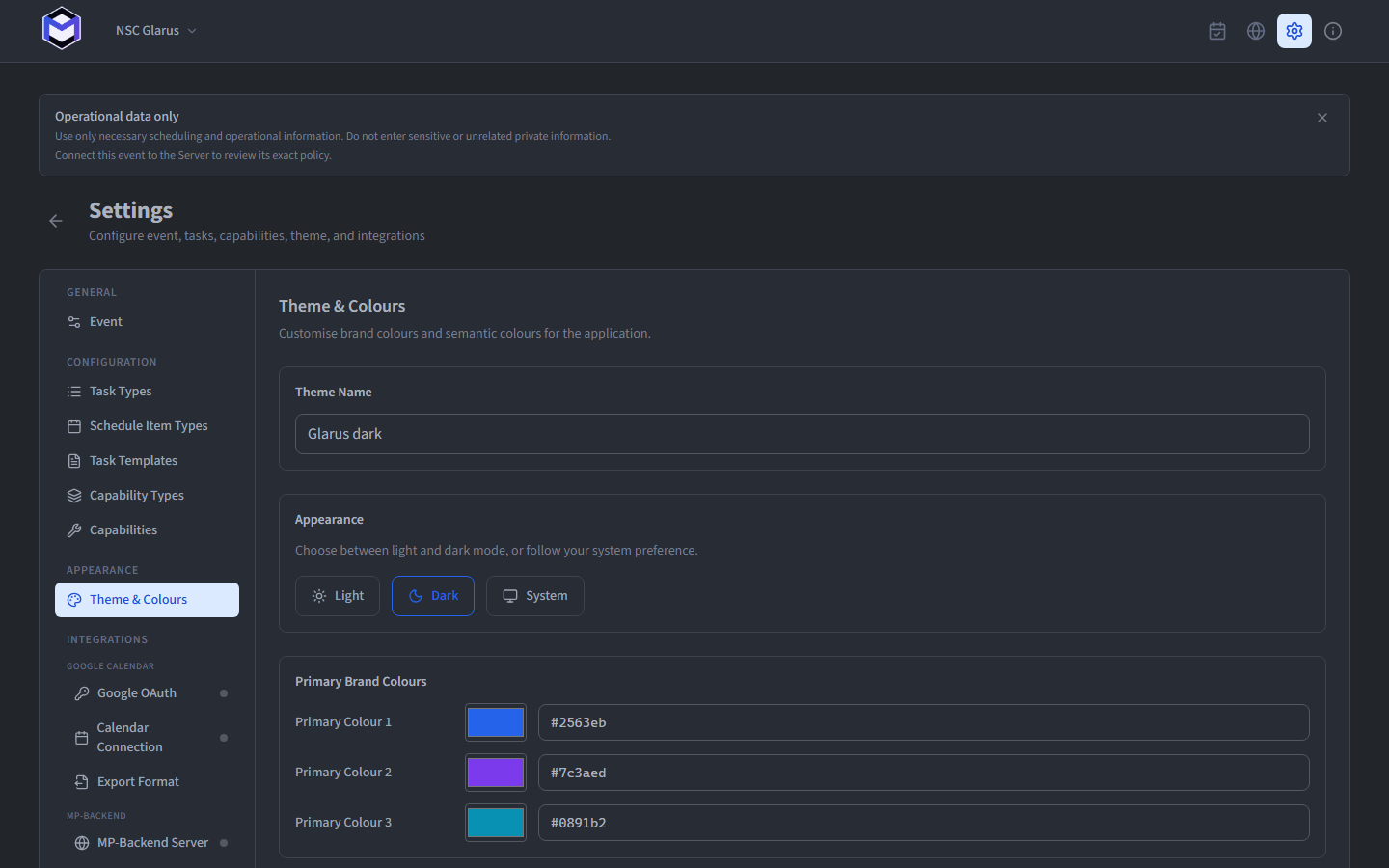
The Theme & Colours section in Settings lets you adapt the application's appearance without changing project data or published schedules.
Choose a display mode
Choose between three display modes:
- Light - Light background with dark text.
- Dark - Dark background with light text.
- System - Follows the operating system preference.
Choose a colour scheme
Seven colours can be customised, each with a colour picker and a hex input field:
- Primary 1 - The main brand colour used for headings, buttons and accents.
- Primary 2 - A secondary accent colour.
- Primary 3 - A tertiary accent colour.
- Success - Used for positive indicators such as the published status badge.
- Warning - Used for caution indicators.
- Error - Used for error messages and destructive actions.
- Info - Used for informational messages.
Click Save Theme to apply the changes.
Set the app icon and logo
The application logo is generated from the primary colours. Two buttons are available:
- Download Logo - Saves the current logo as a PNG file.
- Update App Icon - Applies the logo as the desktop application's window and taskbar icon.