
Plan a session
Step 6 of 1735%
Prepare the organising team
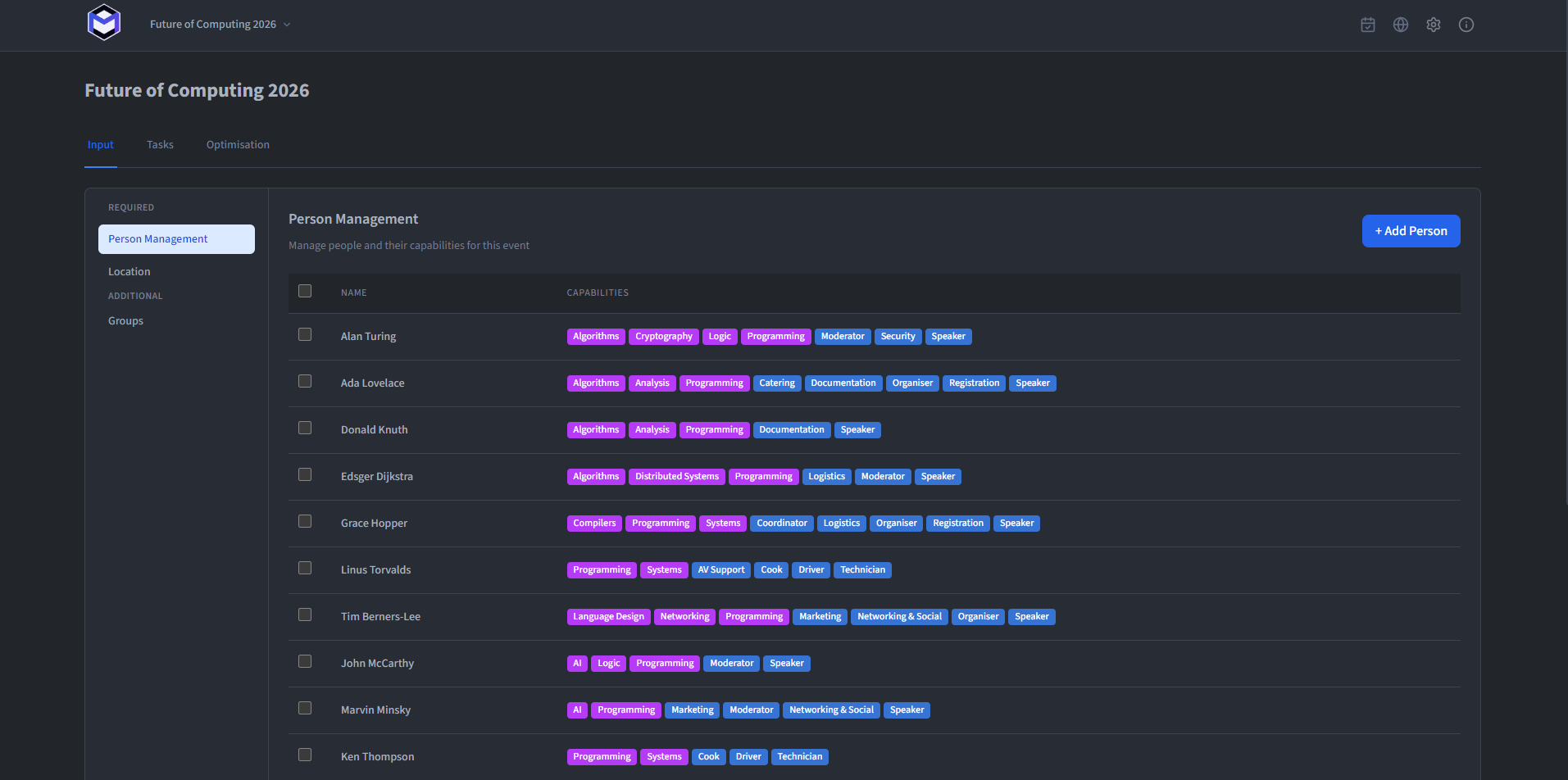
The Person Management section sits on the Input tab. Use it to record only the people and constraints the schedule needs. The table lists the Persons in the current event.
Review the people table
The table displays the following columns for each person:
- Name - First and second name.
- Email - Optional email address.
- Phone - Optional phone number.
- Capabilities - The capabilities assigned to this person, shown as colour-coded badges.
- Max Hours/Day - The daily hour limit, if set.
- Home Location - The person's starting location.
Rows can be selected with checkboxes for bulk operations such as assigning a capability to multiple people at once or setting a shared home location.
Add or edit a person
Click the + button to add a new person, or click an existing row to open the edit modal. The modal contains:
- First Name and Second Name (required).
- Email (optional).
- Phone (optional).
- Max Hours per Day (optional) - Limits the total number of hours per day this person can be assigned.
- Home Location (required) - The location where the person starts each day.
- Capabilities - Add or remove capabilities using the resource selector.
- Unavailability Periods - Define time ranges during which the person is not available for tasks.
Note: Changes to a person (such as added unavailabilities) are reflected in the next optimisation run. Already optimised schedules need to be re-optimised to pick up the changes.
Make careful bulk changes
Select multiple persons using the checkboxes to enable bulk actions:
- Add Capability - Assign the same capability to all selected persons.
- Set Home Location - Set the same home location for all selected persons.