
Plan a session
Connect Desktop to MP-Opt Server
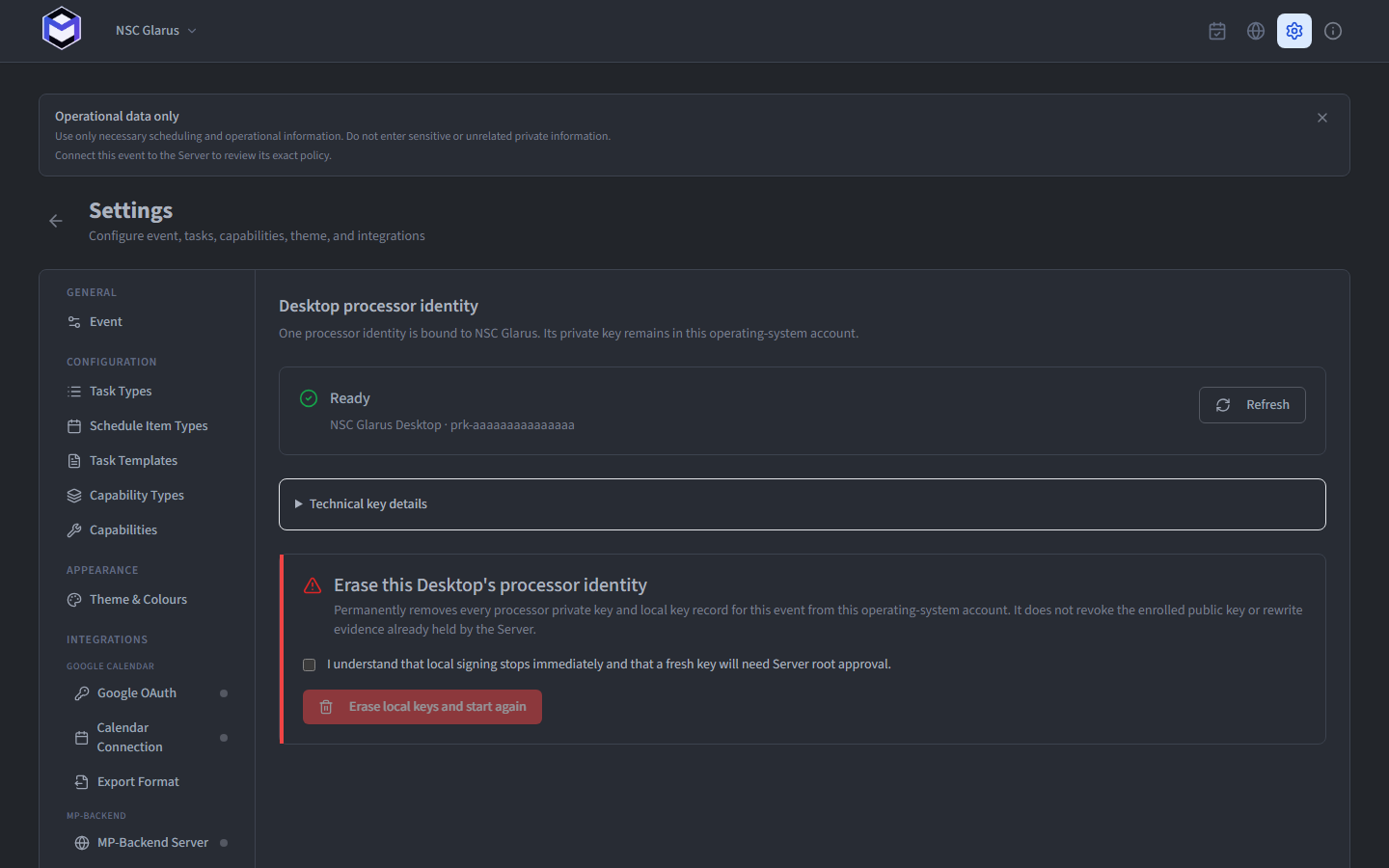
Connect an event only when its Server instance is ready. The Desktop app can then publish the schedule your team reviewed so authorised people can open it on their phones. This guide keeps the event, publish secret and processor identity bound to the same connection.
Before you begin
- The desktop application must be installed and running (see Desktop Installation).
- A server instance must be deployed and accessible over HTTPS (see Server Installation).
- You need the server URL (e.g.
https://mp-opt.net) and a publish secret from the server administrator.
Understand the publishing boundary
The desktop application builds and optimises the schedule locally. When you are happy with the result, you publish the data to the remote server. The server then serves the schedule to organisers who access it through their browser or installed PWA.
A publish pushes the selected event data and theme to the server. The action may cover one selected date or all optimised dates, and the private Masterplan is separate from the public General Schedule. Only the covered live scope is replaced. The publish secret authenticates the desktop app so that only authorised planners can push updates.
Electron + FastAPI
Caddy + FastAPI + PostgreSQL
PWA Calendar
Data flows from the desktop application to the server and then to organisers' phones.
Step 1 — Obtain the Server URL and publish secret
Your server administrator (typically an NC Board Member or coordinator) will provide you with two pieces of information:
| Value | Example | Purpose |
|---|---|---|
| Server URL | https://mp-opt.net | The base URL of the deployed Masterplan Optimiser server |
| Publish Secret | abc123... | A secret token that authenticates this desktop app to push data to a specific event on the server |
The publish secret is created on the server's admin panel when the administrator sets up the event. Each event has its own secret.
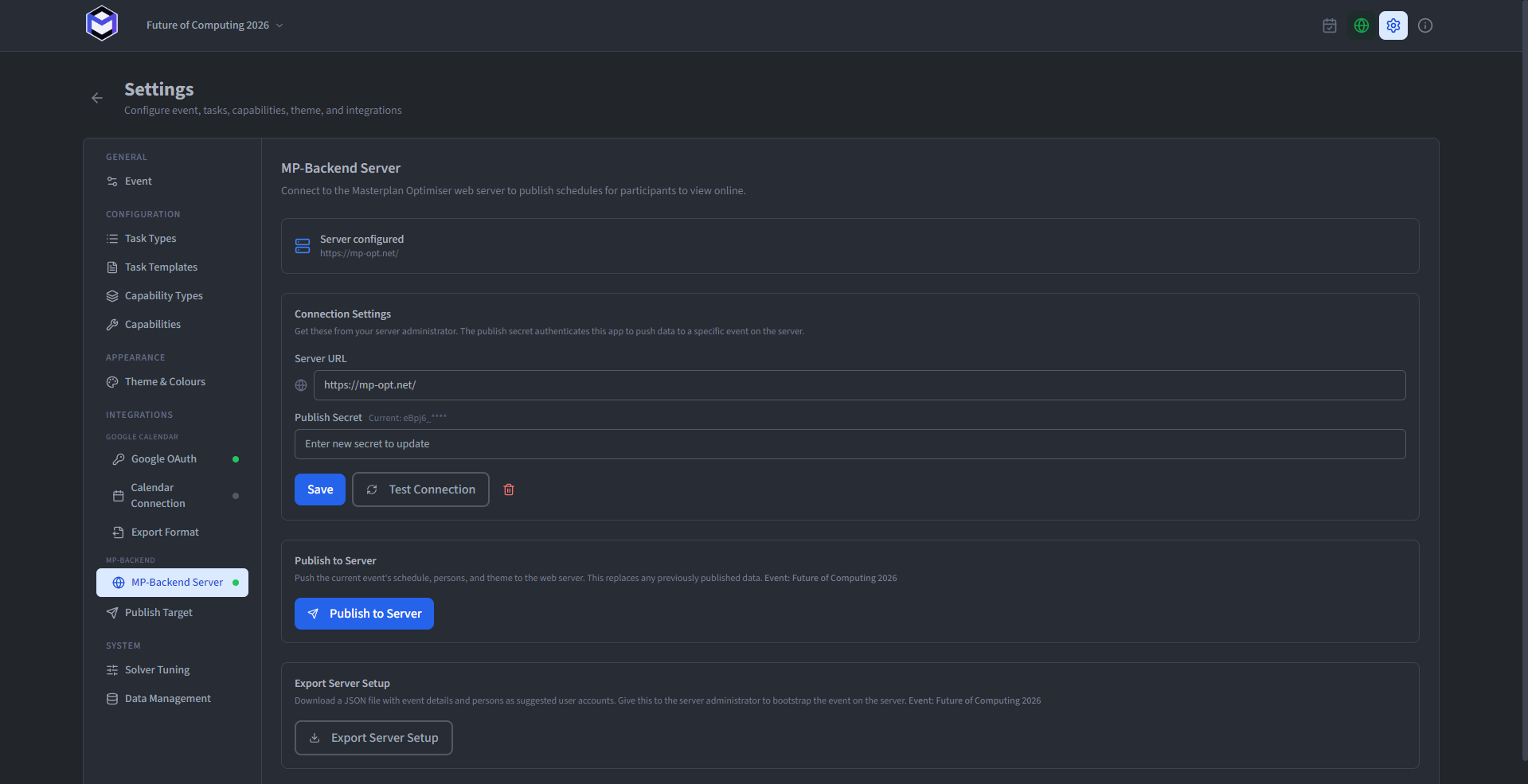
Step 2 — Configure the Desktop connection
- Open the desktop application and select the event you want to publish.
- Navigate to Settings (gear icon in the sidebar).
- Find the MP-Backend Server section.
- Enter the Server URL (e.g.
https://mp-opt.net). - Enter the Publish Secret provided by the server administrator.
- Click Save.
Step 3 — Test the connection
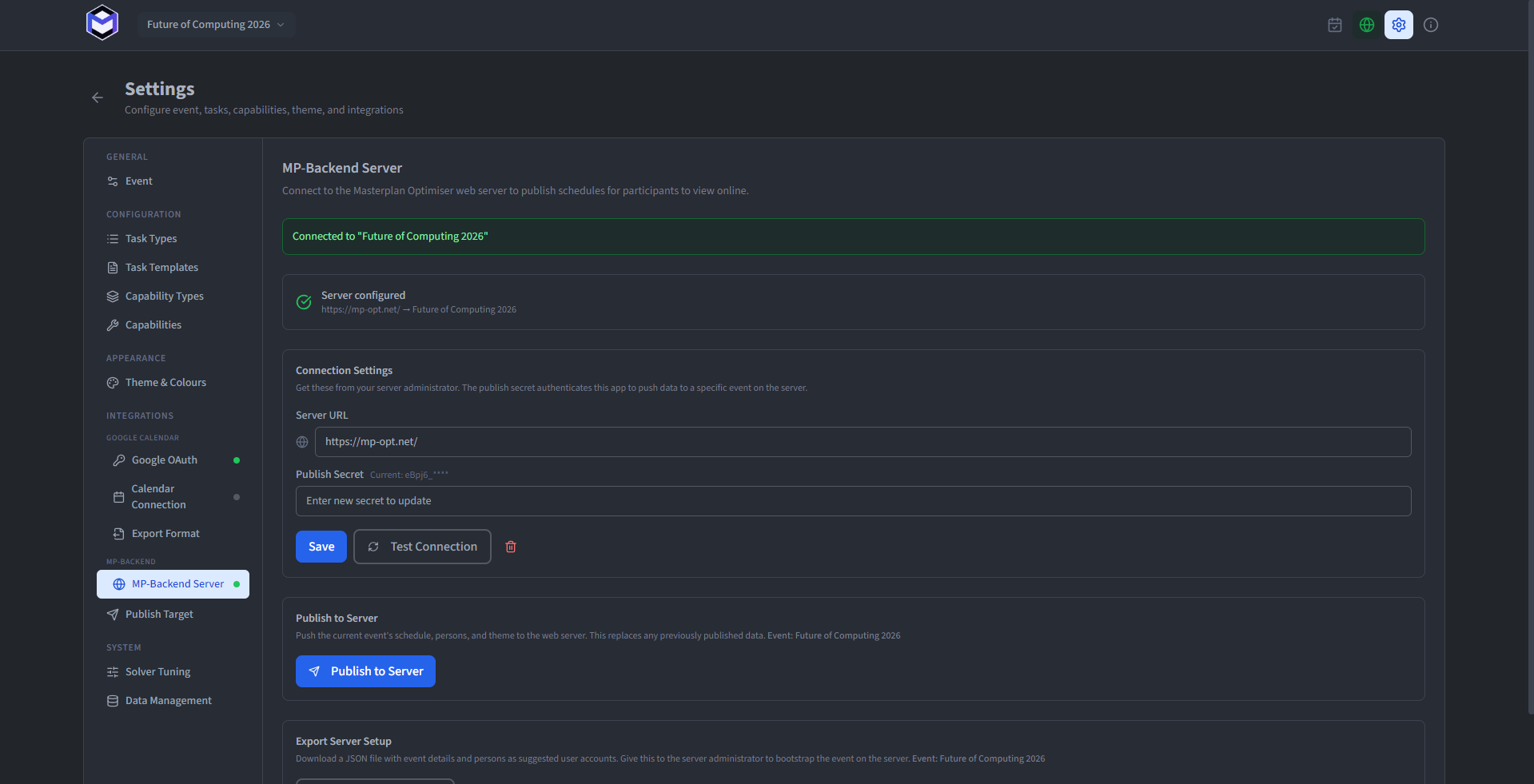
- After saving, click the Test Connection button.
- If the connection is successful, you will see a green confirmation message with the event name from the server (e.g. Connected to “Berlin International Session 2026”).
- If the test fails, check:
- Server unreachable - verify the URL is correct and the server is running
- Authentication failed - verify the publish secret matches what the server administrator provided
Step 4 — Publish the reviewed schedule
- Make sure your schedule is finalised (see Finalising the Schedule).
- In the MP-Backend Server section, click Publish to Server.
- The application pushes the full schedule, person list, and theme to the server. A confirmation message will show how many tasks and persons were synced.
- Organisers can now view the schedule on the web calendar.
Export a setup file
If you need to transfer the event configuration to the server administrator (or import it on another machine), you can export a setup file:
- In the MP-Backend Server section, click Export Setup.
- A JSON file is downloaded containing the event metadata, persons, and schedule data.
- Share this file with the server administrator for import.
Publish again after a change
After re-running the optimiser or making manual adjustments, publish the relevant date or the full schedule again. The server records schedule history before replacing the covered live scope. Saved web edit overlays covered by that publish are cleared; unrelated dates are not replaced by a selected-date publish.
Continue from here
- Google Calendar Integration - publish events directly to Google Calendar
- PWA Installation - install the web calendar as an app on organisers' phones
- Web Calendar Overview - learn about the web calendar features