
Plan a session
Task types and templates
Task types and templates together define how tasks are grouped, how they appear, and which information an organiser records when creating them.
Define task types
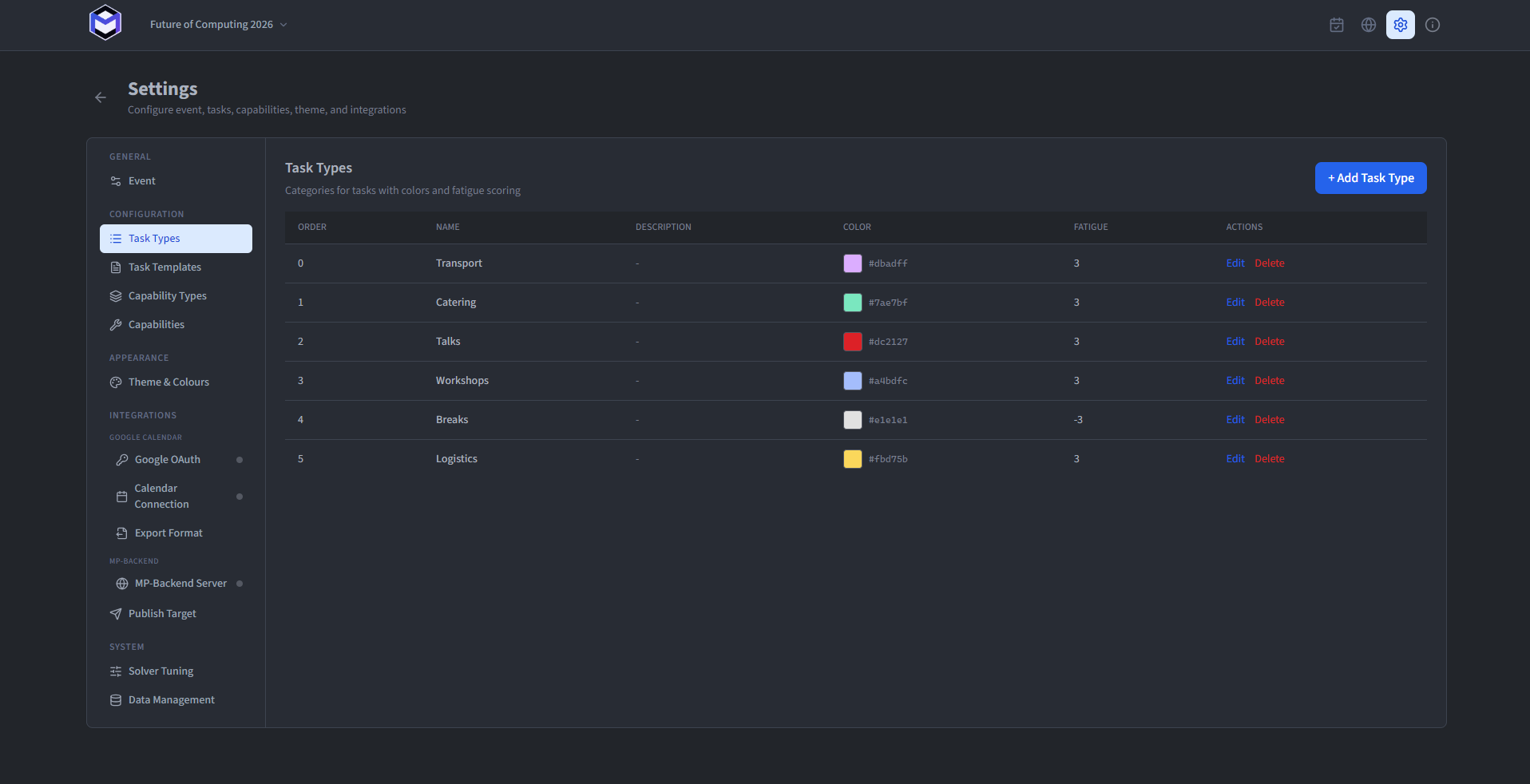
Task types categorise tasks and define their visual appearance as well as their impact on person fatigue. They can be modified in the settings under Task Types. Create as many types as the event needs and define:
- Name (required) - The display name used to identify the task type across the application.
- Description (optional) - A note describing the purpose of the task type.
- Sort Order (required) - The order in which task types and their associated templates are displayed. Lower values appear first.
- Colour (required) - The colour used for the visual representation of tasks associated with this type. This colour is applied throughout the application wherever tasks of this type are shown.
- Fatigue Score (required) - Defines the per-minute fatigue impact that tasks of this type have on a Person. Positive values represent straining work (i.e. manual labour), whereas negative values represent restoring activities (i.e. breaks). The optimisation uses this score to balance the workload across all Persons and minimise overall fatigue.
Task types have no effect on assignment constraints but directly influence how the optimisation distributes work. A well-configured set of task types with appropriate fatigue scores allows the optimiser to avoid overloading individuals by interspersing recovery breaks throughout the schedule.
Build reusable task templates
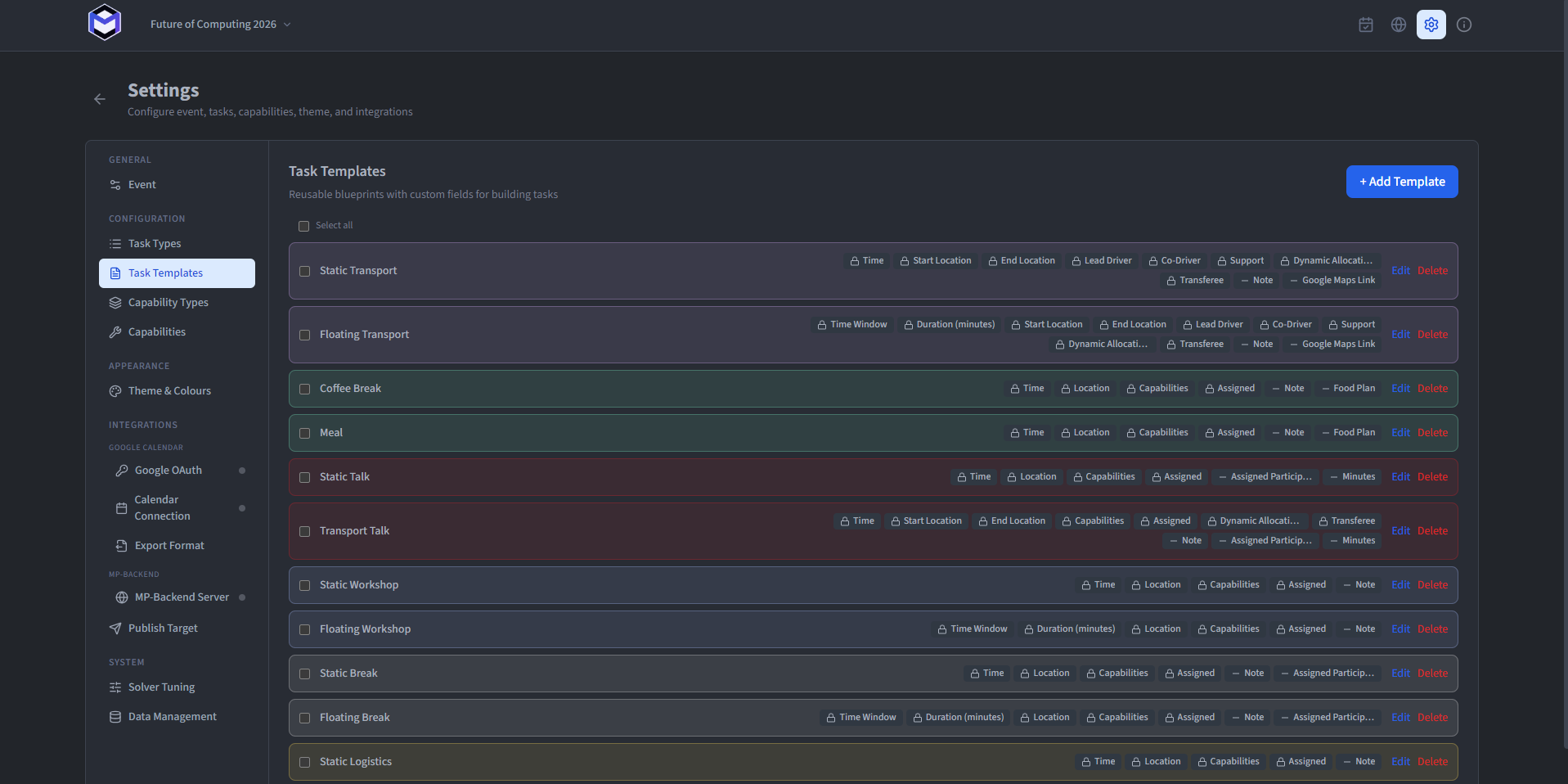
Templates preserve the structure of work you create more than once: which information an organiser records and how the task behaves during optimisation. Edit them in the settings under Task Templates. Each template defines:
- Machine Name (required) - A machine-readable identifier consisting only of lowercase letters, numbers, and underscores. This entry must be unique; if a duplicate is created, an error is thrown.
- Name (required) - The display name shown when selecting a template.
- Description (optional) - A note describing the purpose of the template.
- Task Type (required) - Associates the template with a task type, inheriting its colour and fatigue score.
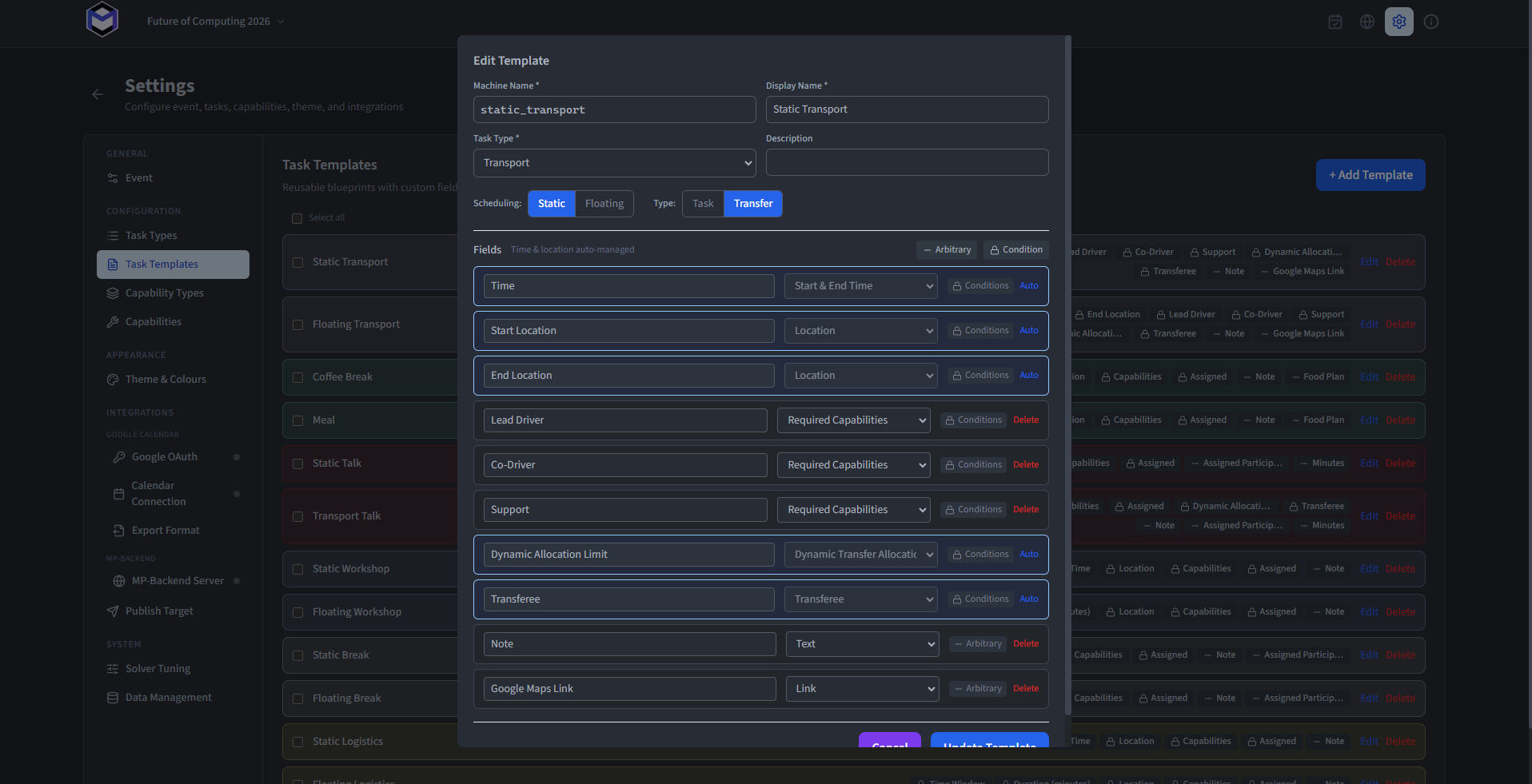
In addition, each template defines two behavioural properties through toggles:
- Static or Floating - Determines how the task's time is handled. Static tasks have a fixed start and end time, whereas floating tasks specify a time window and a duration, and the optimisation picks the best time within that window. (See Floating Tasks)
- Normal or Transfer - Determines whether the task takes place at a single location or represents a movement between two locations. (See Transfers)
These toggles automatically add the corresponding system-managed fields to the template, which cannot be removed or renamed.
Choose the template fields
A template's fields decide what an organiser records for each task. Keep optimisation conditions separate from descriptive metadata.
Condition fields
Condition fields are consumed by the optimisation and directly influence how Persons are assigned:
- Start/End Time - For static tasks. Specifies the exact time window during which the task takes place.
- Time Range - For floating tasks. Specifies the earliest and latest time between which the task may be scheduled.
- Duration - For floating tasks. Specifies how long the task must last in minutes. The duration must fit within the given time range.
- Location - For normal tasks. Specifies where the task takes place. May be set to Any Location, in which case the optimisation picks the location that minimises overall fatigue.
- Start Location and End Location - For transfer tasks. Specifies the departure and arrival locations.
- Capabilities - A list of required capabilities, each with a quantity. The optimisation assigns persons that have the matching capabilities in the specified amounts.
- Persons - A list of directly assigned persons. These persons must be assigned to the task and the optimisation cannot remove them.
- Dynamic Allocation Limit - For transfer tasks. Specifies the number of additional persons beyond the required capabilities that may board the transfer. (See Transfers)
- Transferee - For transfer tasks. Identifies which field determines the travellers being transferred.
Time, location, and transfer-related condition fields are system-managed (locked) and are added or removed automatically based on the static/floating and normal/transfer toggles. Capabilities and persons fields can be freely added or removed.
Descriptive fields
Descriptive fields add useful context without changing the optimisation:
- Text - A free text input for notes or references.
- Number - A numeric input for quantities, codes, or other figures.
- Link - A URL field.
Any number of arbitrary fields can be added to a template. They appear separately from condition fields when creating or editing a task.
Reuse templates deliberately
Templates are defined globally and are available across all events. A new task copies the template's current fields and behaviour. Later template changes affect only tasks created afterwards.
Note: Changes to a template do not retroactively update tasks that were already created from it. If you need to apply new fields to existing tasks, they must be recreated.