
Plan a session
Review published schedule history
Every time a schedule is published to MP-Opt Server, it preserves a schedule snapshot. Use that immutable event-level history to understand a change or restore an earlier publication. It is not an infrastructure backup.
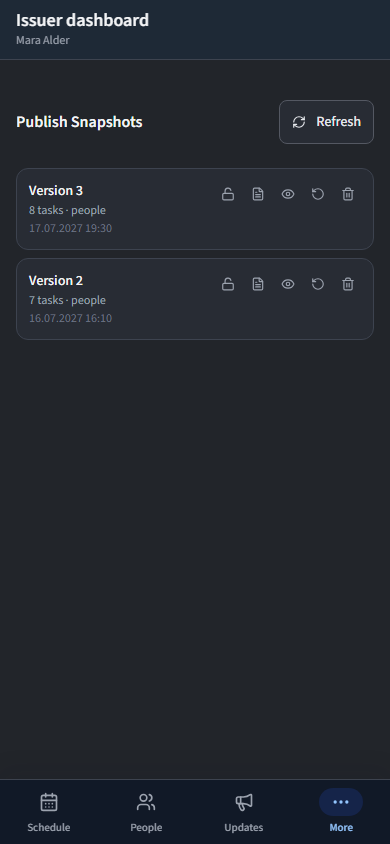
Browse schedule snapshots
The History tab shows all snapshots for the active event, sorted newest first. Each entry displays the snapshot date, time and the number of tasks and persons it contains. Click a snapshot to preview it.
Give a snapshot a useful label
Each snapshot can be given a custom label to make it easier to identify. Click the pencil icon next to a snapshot's version number to enter edit mode, type a name (up to 100 characters), then press the check mark or Enter to save. Press Escape to cancel.
When a label is set, it replaces the default “Version N” heading on the snapshot card, with the version number shown below it. To remove a label, clear the text field and confirm.
Freeze or unfreeze retention
Freezing a snapshot protects it from automatic pruning and manual deletion. Click the lock icon on a snapshot card to toggle its frozen state. Frozen snapshots are highlighted with a blue border.
- Frozen snapshots cannot be deleted until they are unfrozen.
- When the snapshot limit is reached, only unfrozen snapshots are pruned — frozen ones are always kept.
- If every snapshot slot is frozen, new publishes will be rejected until at least one snapshot is unfrozen or deleted.
Tip: The maximum number of snapshots per event is configurable in the Security Settings. The default is 20.
Restore a reviewed snapshot
Click Restore on a snapshot to make it the active schedule. The current schedule is replaced and a new snapshot is created as a backup before the restore takes effect, so you can always undo the operation.
Delete an eligible snapshot
Old snapshots can be removed individually to free storage. Click the delete button and confirm in the dialog. The currently active schedule cannot be deleted, and frozen snapshots must be unfrozen first.
Note: Users of the calendar app can also view historical snapshots in read-only mode. See Calendar Snapshots.