
View my schedule
Activate the account and sign in
The web calendar uses passkeys (WebAuthn) instead of a reusable password. Your device may ask for its biometric check, PIN or security key; the Server receives the public credential, not the biometric or passkey private key.
Activate the account
Before you can sign in, an administrator must generate an activation link for your account. You will receive either a direct link or a QR code.
- Open the activation link or scan the QR code on the device you want to use.
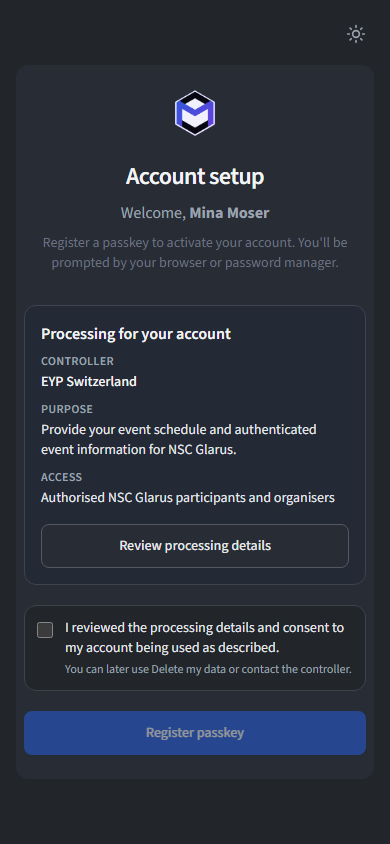
- Check the compact controller, purpose, and authenticated-audience summary. Open Review processing details for the complete purposes, operational data categories, contact details, policy identity, and privacy/rights links. Confirm only if it matches the access you expect.
- The browser then prompts you to create a passkey. Follow the on-screen instructions to use your fingerprint, face, device PIN, or security key.
- Once registration succeeds, the link is consumed and you are signed in automatically.
The confirmation records the exact published statement and policy digest shown during first activation. It is not an age declaration and does not appear again for an additional passkey or credential reset. You can later use Delete my data or contact the published privacy contact.
Tip: Activation links are single-use and time-limited. If your link has expired, ask the administrator to generate a new one.
Open a QR activation
For events with many participants, the administrator can print a batch of QR codes. Each code is unique to one person. Scan your personal QR code with your phone camera to begin registration.
Sign in again
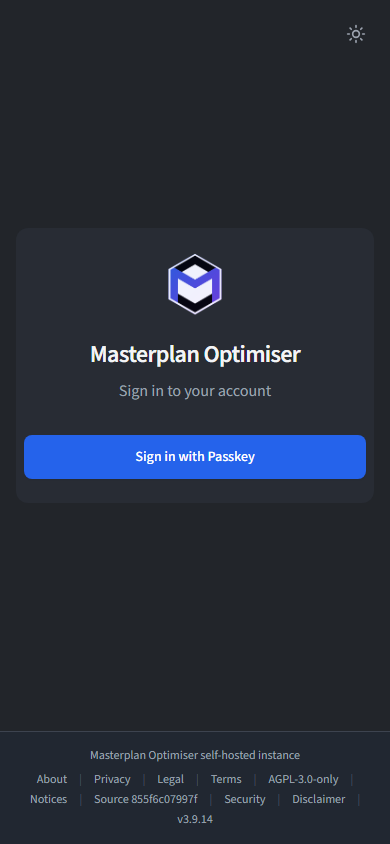
Once your passkey is registered, visit the calendar app and click Sign In. Your browser will prompt you to authenticate with the same biometric or PIN used during registration.
Sessions remain active according to the session policies configured by the administrator. You may be asked to re-authenticate periodically.
Important: Passkeys are stored on your device. If you lose access to the device, contact your administrator to generate a new activation link.