
Manage events and people
Manage calendar access
Use Users to create only the accounts an event needs, issue bounded activation links and review each account's access. Link an account to a persons when its holder should see personal schedule highlights in the Calendar Web App.
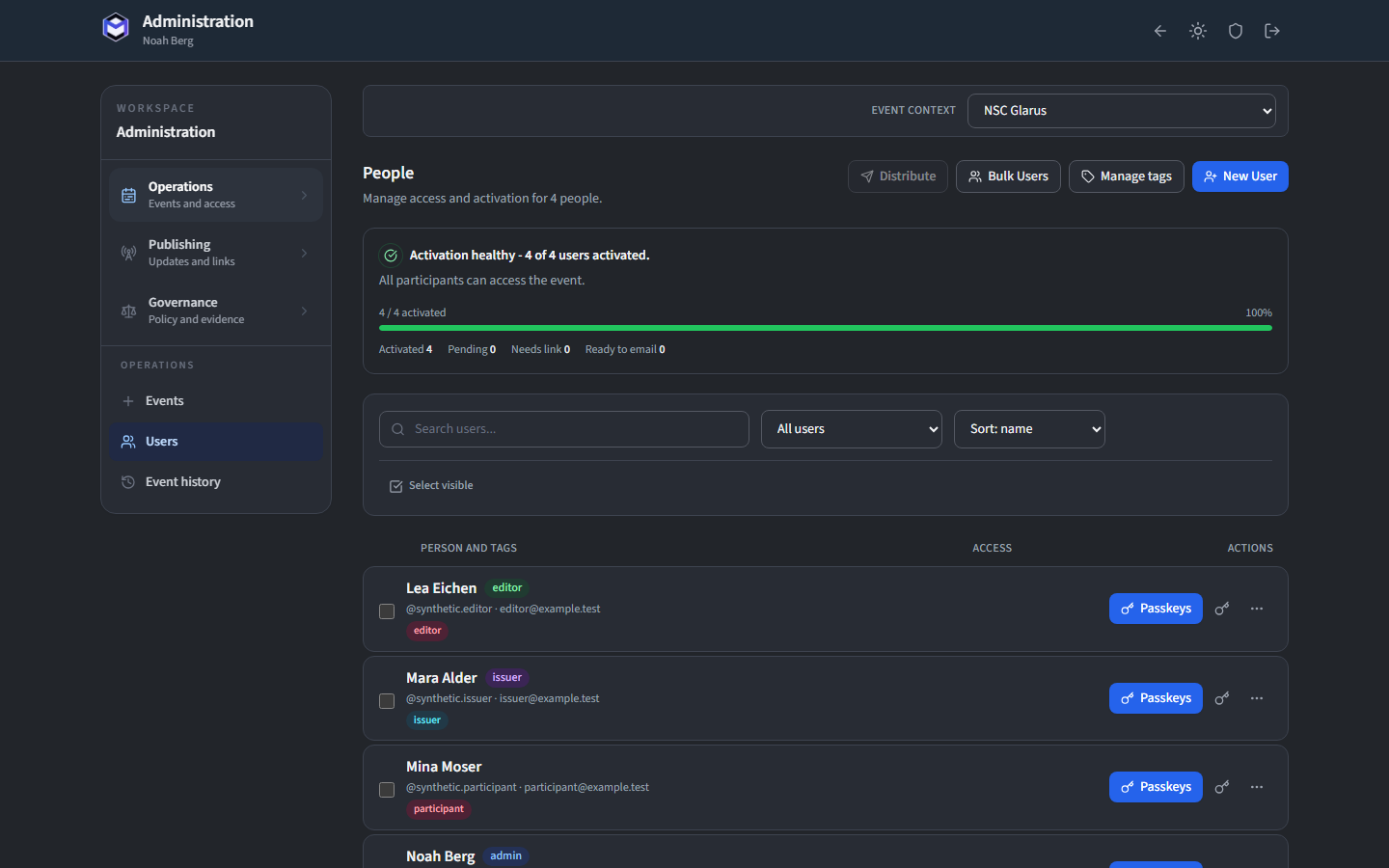
Selecting an event or typing a name filters the Users list in place. The active Operations view remains Users, so you can refine the result and continue with account actions without returning from the Events view.
Create an account
Click Create User and provide a display name and, optionally, tags for filtering. Each user entry is linked to a person record from the published schedule so the system knows which tasks belong to them.
The Person Link dropdown shows all persons in the active event. Select the matching person to associate the user account with their schedule.
Setup imports in Server v3.9.5: If the imported Desktop setup package contains an account email, the Server validates and stores that exact address automatically. Missing email remains allowed, but activation and additional-passkey mail cannot be sent until an administrator adds one. Canonical UUIDv4 and deterministic UUIDv5 evidence identities are preserved as supplied.
Issue an activation link
Users authenticate with passkeys (WebAuthn). To set up a passkey, each user needs a one-time activation link.
Click the Generate Link button on a user row. The link is time-limited and single-use - once the person registers their passkey the link expires.
Copy the link or share it directly. If a link expires before use, you can regenerate it at any time.
First activation: Before the browser asks for a passkey, the person sees a compact effective-controller, purpose and audience summary. Review processing details opens the complete published categories, contacts, links, governance version and digest without making the setup card excessively long. They must still confirm the exact statement. Passkey registration, link consumption, account activation, and the pseudonymous evidence record are committed together. A rejected passkey leaves all four unapplied.
This confirmation proves which published statement was presented and accepted. It does not certify that consent is the correct or legally valid basis for every controller-person relationship. Additional passkey and credential-reset links reuse the existing account record and do not ask again.
Prepare a controlled QR batch
For large groups, use Generate Batch QR to create a printable sheet of QR codes. Each QR code encodes a unique activation link for one user. Hand out the printed sheet so that each person can scan their code to register.
Review permissions
Each user has a Can Edit toggle. When enabled, the user may commit permitted schedule changes as shared server-side overlays. Unsaved browser drafts stay local. When disabled, the schedule is read-only.
Export or erase personal data
To comply with data protection regulations, two actions are available per user:
- Export Data - Downloads all personal data held for the user as a JSON file.
- Anonymise - Replaces the user's personal information with anonymised placeholders while keeping aggregate schedule data intact.
Warning: Anonymisation is irreversible. The user's original data cannot be recovered.