
Plan a session
Run the optimiser
Use Optimisation after the event inputs and tasks are ready. Choose the days and tasks to include, then follow the solver's progress. A failed feasibility check is useful information: resolve the reported constraints before asking for a balanced assignment.
Choose the scope
The tab shows an overview of available days within the event. Select the day or days you wish to optimise. A panel lists all tasks for the selected day(s) with checkboxes - tick the tasks to include in the optimisation run.
A calendar preview shows the selected tasks so you can verify the selection before running the solver.
Start the optimisation
Click Run Optimiser to start. The system first performs a feasibility check. If conflicts are found, they are displayed and the optimisation does not proceed until they are resolved.
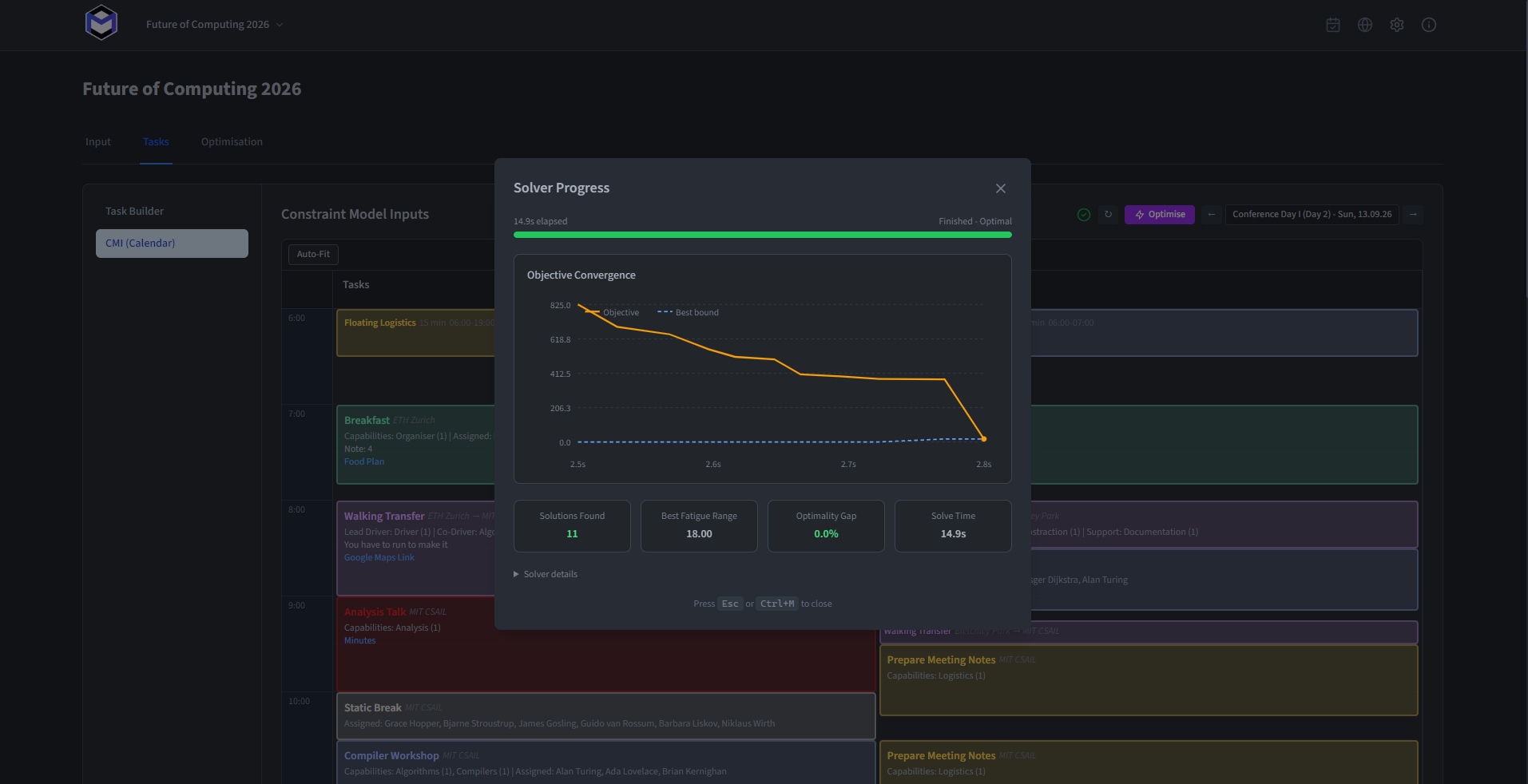
Once the check passes, the solver begins assigning persons to tasks while minimising fatigue. A progress modal appears showing a live objective-value chart - the line tracks how the solver's solution improves over time. The solver runs until it reaches its configured timeout or finds an optimal solution.
Review what the optimiser produced
When the solver finishes, the calendar updates to show the optimised assignments. Each task now displays which persons have been assigned. From here you can:
- Review the results and inspect metrics.
- Finalise the schedule once satisfied.
- Click Clear to discard the results and start again.
Tip: Solver parameters such as the timeout and fatigue weighting can be adjusted in Settings & Configuration.