Plan a session
Review the proposed schedule
After running the optimiser, treat the result as a proposal to inspect rather than an automatic decision. The Optimisation tab shows the assignments in a calendar alongside the metrics that help your team examine workload and feasibility. It includes all tasks with their assigned persons, colour-coded by task type.
Inspect the optimised calendar
The optimised calendar shows each task with its time slot, location, and the persons the solver has assigned. For floating tasks, the solver-chosen time is displayed in place of the original time range.
Use the metrics as review signals
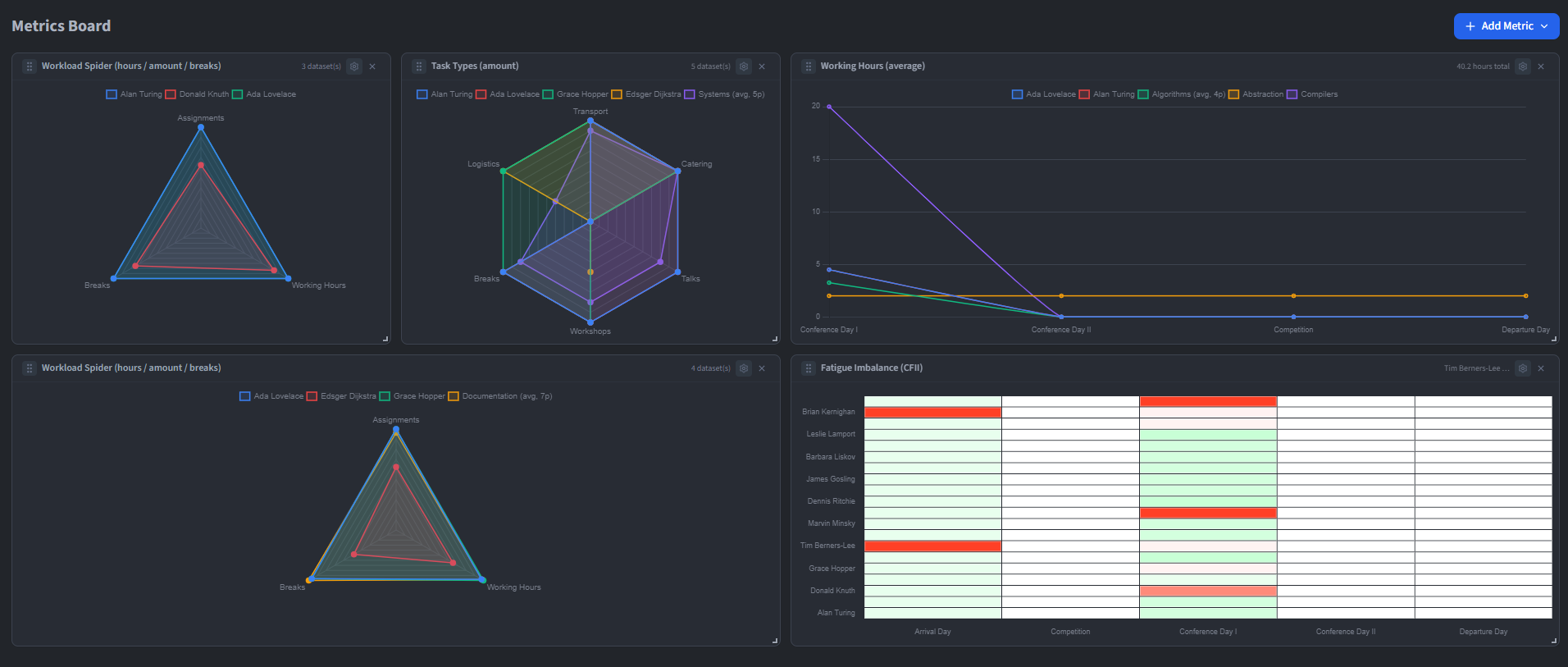
Click View Metrics to open the metrics dashboard in a separate window. The board shows a configurable grid of metric cards that can be added, removed, resized and reordered by dragging. The layout is saved between sessions.
Available metrics include:
- Average Working Hours - Mean hours assigned per person.
- Absolute Working Hours - Total hours per person shown as a chart.
- Workload Spider - Radar chart comparing workload distribution across persons.
- Fairness - How evenly hours are spread across the team.
- Task Type Count Spider - Radar chart of task type distribution per person.
- Task Type Hours Spider - Radar chart of hours per task type per person.
- Fatigue Timeline - Line chart tracking fatigue over the event.
- Max Work Streak - Longest consecutive working period per person.
- CFII - Continuous Fatigue Index Indicator.
Each card can be toggled between per-day and whole-event aggregation, and filtered to specific persons using the resource selector. Changes to the optimisation are reflected in the metrics in real time as a dashed preview overlay.