
Plan a session
Move or protect project data
The Data Management section in Settings holds the deliberate actions for exporting, importing, copying and deleting project data. Read the confirmation carefully: these actions serve different recovery and deletion purposes.
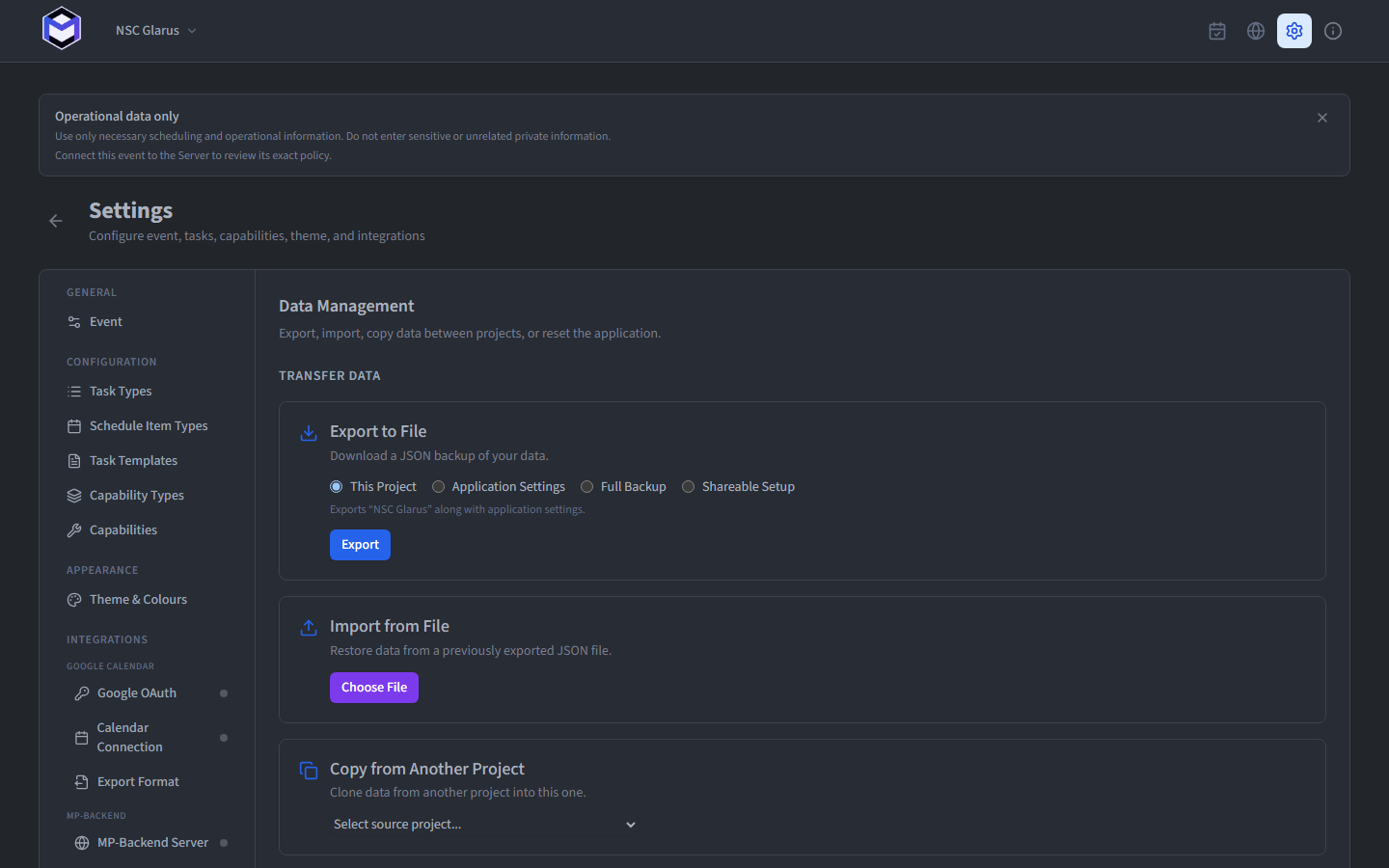
Export a project
Choose one of three export scopes and click Export to download a .json file:
- This Project - Exports the current event together with application settings.
- Application Settings - Exports only global configuration such as task types, templates and capabilities.
- Full Backup - Exports all projects and application settings.
Import a project
Click Choose File to select a previously exported .json backup. The file is validated - it must contain application settings. Once validated, click Import to restore the data.
Importing can also be done from the Project Hub using the Import Backup button.
Copy an event
To reuse data from another project, select a source event from the dropdown and tick which data to copy:
- Persons - All persons and their details.
- Locations - All locations.
- Groups - All groups and their memberships.
- Task Types & Templates - Task type and template definitions.
- Capabilities - Enabled capability definitions.
Click Copy to Current Project to proceed. A summary confirms how many items were copied.
Delete a project or reset the app
Delete Project permanently removes the current event and all its data after a confirmation dialog.
Factory Reset Application removes all projects and settings. You must type RESET to confirm. After the reset, the application returns to the welcome screen.
Warning: Both delete and factory reset are irreversible. Export a backup first if you may need the data later.