
Plan a session
Step 10 of 1759%
Build tasks deliberately
Use the Task Builder when you want to create and compare tasksin a structured list. Open Tasks, then Task Builder. Its three panels keep the template, task details and event context visible together.
Read the three-panel layout
The builder is divided into three panels:
- Template Selector (left) - Lists all available task templates. Click a template to load its fields into the centre panel.
- Field Form (centre) - Displays the fields defined by the selected template. Fields are sorted automatically: time fields first, then location, capabilities, persons, and finally arbitrary fields. A Task Name input appears at the top.
- Day Selector (right) - Shows the days within the event's date range as checkboxes. Select one or more days to create the task on each.
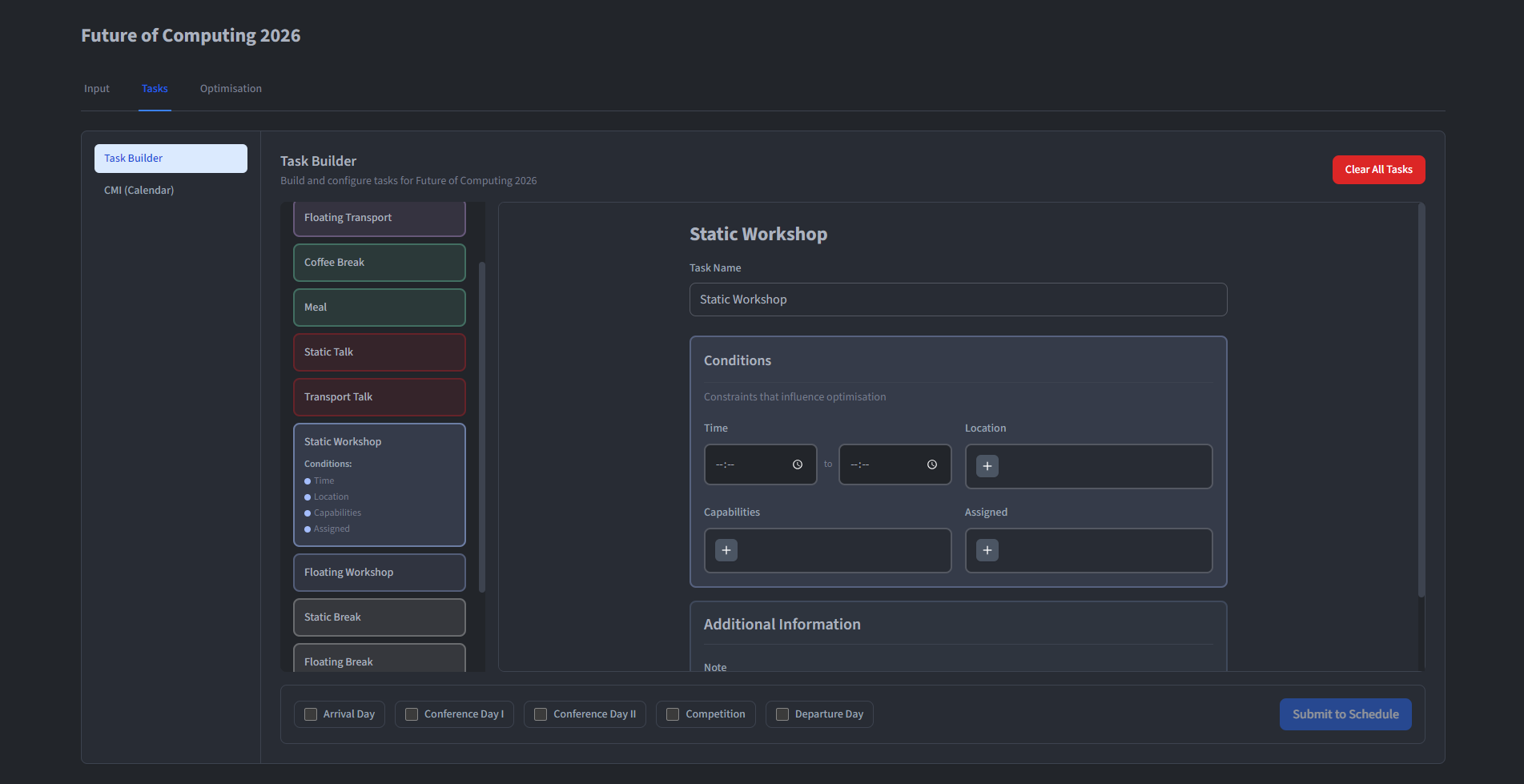
Create a task
To create a task:
- Select a template from the left panel.
- Fill in the fields in the centre panel (name, time, location, capabilities, persons, etc.).
- Tick one or more days in the right panel.
- Click Create Tasks.
A separate task instance is created for each selected day, all sharing the same field values. Use Clear All to reset the form.
Complete only the fields the task needs
The centre panel adapts to the template's field definitions:
- Time fields - Time pickers for start/end time or time range, plus a duration input for floating tasks.
- Location - A dropdown of all defined locations plus the Any Location option.
- Capabilities - A resource selector for adding capabilities with a quantity for each.
- Persons - A resource selector for directly assigning Persons or Groups.
- Arbitrary fields - Text, number or link inputs for metadata.
- Transferee - For transfer tasks, this field is greyed out and filled automatically by the optimiser.