
View my schedule
Read your schedule
After signing in, begin with the current day and your highlighted tasks . Use the day selector or swipe to move through the event, then open a task before relying on its time, place or instructions.
Open the task details
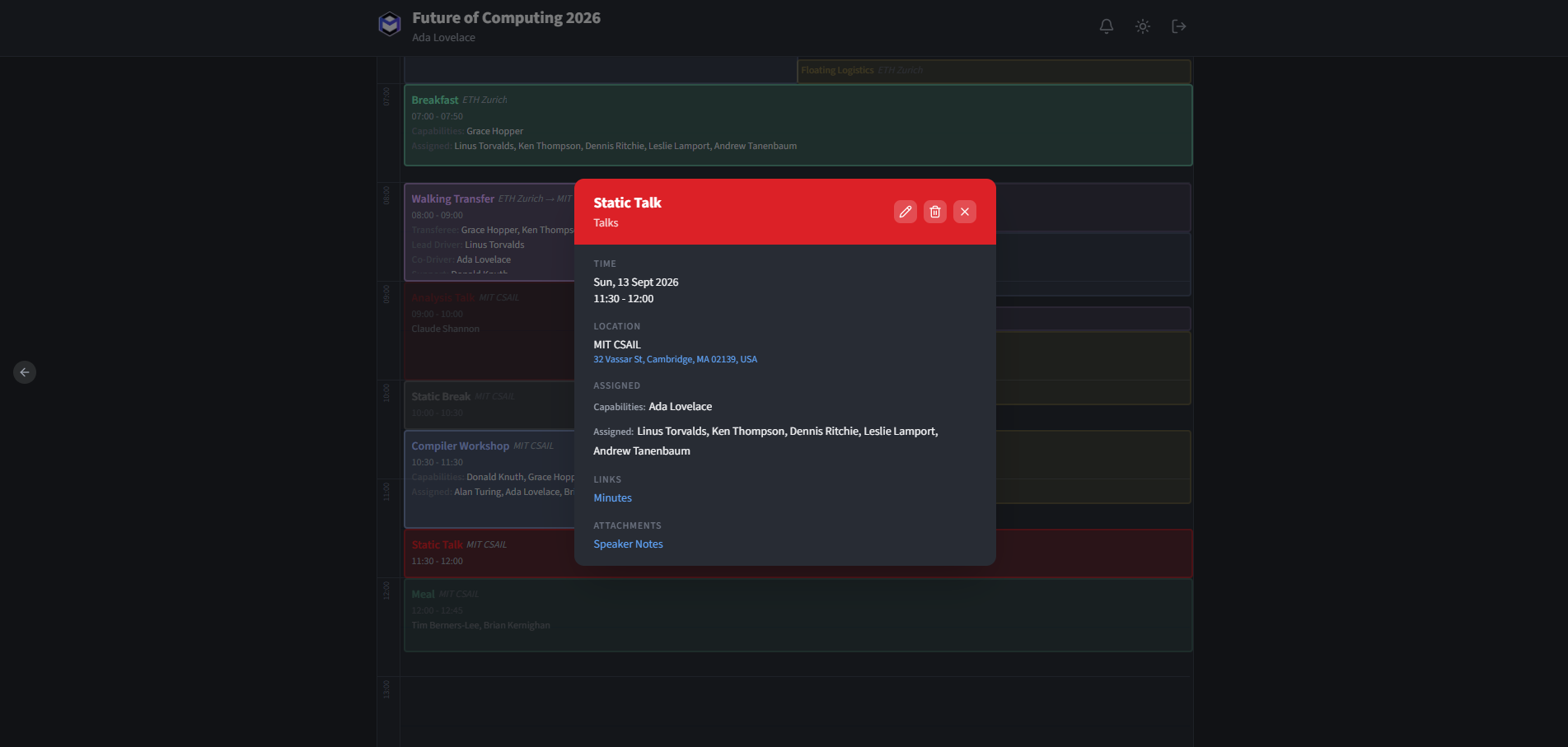
Tap or click a task block to open the detail panel. It displays:
- Task name. A task type badge appears only when the task type differs from the name.
- Time - Start and end time.
- Location - The assigned location.
- Operational fields - Each published value keeps its field label and multiline formatting, for example
Briefing note: Meet beside registration.Time and location stay in their dedicated sections rather than appearing a second time here. Non-location links display the field label and the complete clickable URL. - People - Every authenticated account in the event sees the same ordered allocation categories and the names assigned to each category. For example,
Front-Orga: [published name]. Legacy tasks without allocation categories show their flat attendee list instead. Capability requirements are never shown as people or task details. Assigned names do not expose the complete people directory or another person's availability. See persons for the underlying person model. - Custom fields - Any additional fields defined in the template.
Draft and commit an authorised adjustment
If your account has the Can Edit permission (set by the administrator), you can adjust permitted schedule fields. Changes remain an unsaved browser draft until you commit them. A committed edit becomes a shared server-side overlay visible to other authorised users.
Editable fields include time, location and description. The published values remain available as the baseline so the overlay can be reviewed or removed.
Note: Only an unsaved draft is local. Committed edits are shared. A later desktop publish clears committed overlays only in the dates and dataset covered by that publish.
Follow the current-time indicator
When viewing today's schedule, a red line marks the current time on the calendar grid, making it easy to see what is coming up next.